
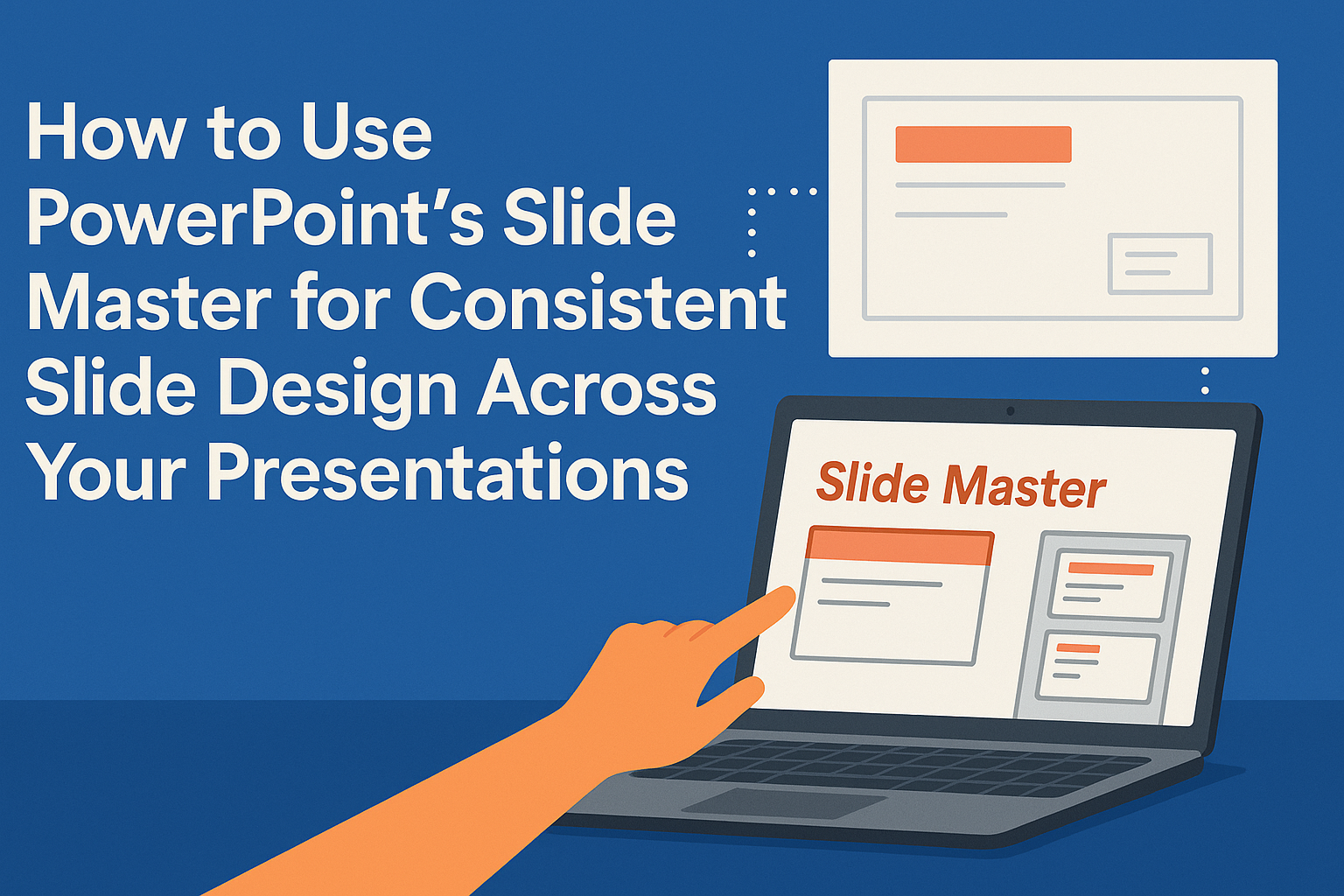
Creating visually appealing presentations is key to engaging an audience. Many people struggle with maintaining a consistent look throughout their slides. PowerPoint’s Slide Master feature allows users to design a cohesive presentation efficiently by applying global changes that affect all slides at once. With Slide Master, anyone can customize fonts, colors, and layouts, ensuring that …
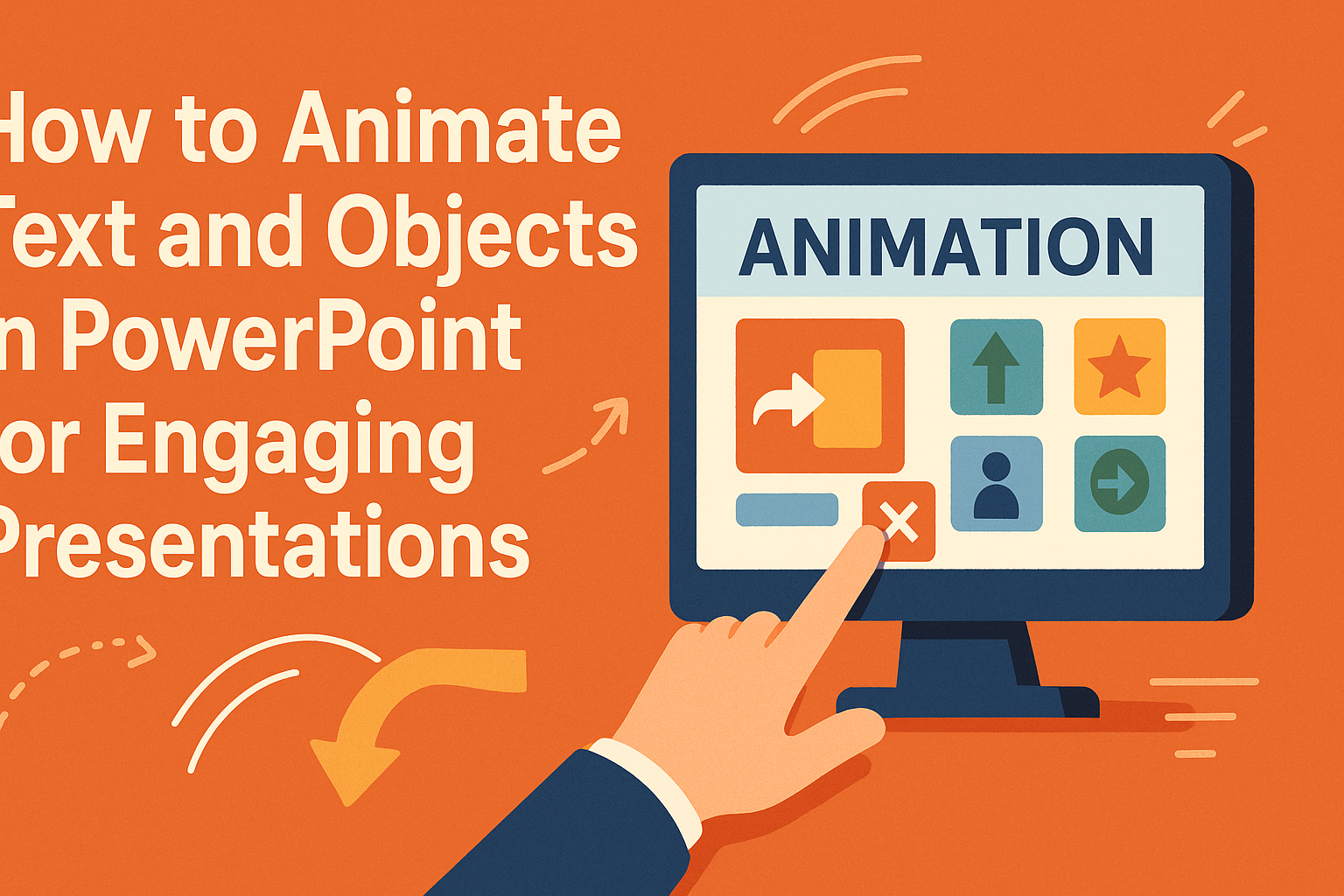
Animations can bring a presentation to life by making it more engaging and visually appealing. To animate text and objects in PowerPoint, users can select the item they want to animate, choose an animation effect, and customize the timing and order of the animations. This process helps highlight important information and keeps the audience’s attention …
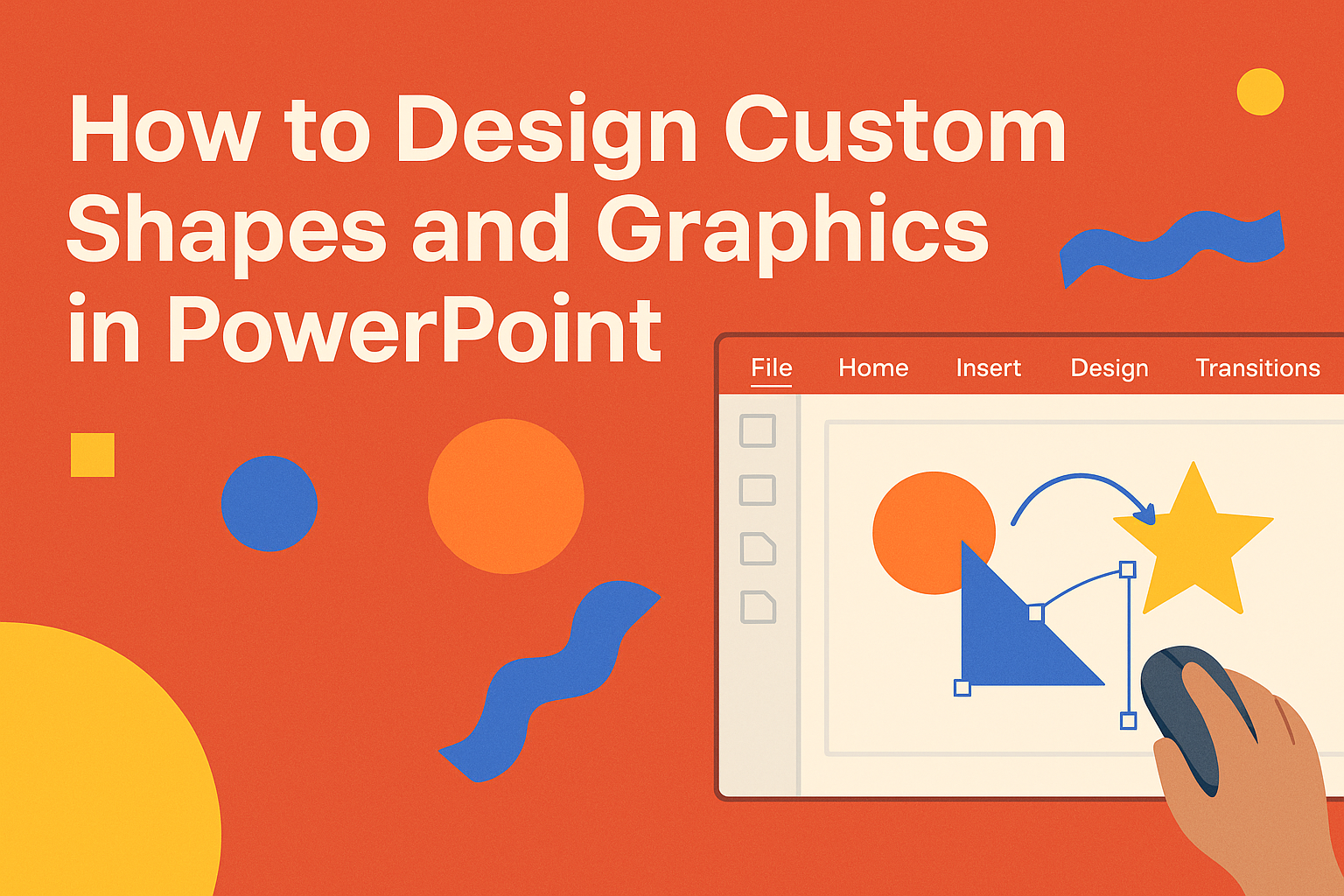
Creating custom shapes and graphics in PowerPoint can significantly enhance presentations. By using tools within PowerPoint, anyone can easily design unique visuals that capture attention and convey messages clearly. This skill opens a door to more creativity and personalization in presentations, making them stand out. Whether it is for a business presentation or a school …
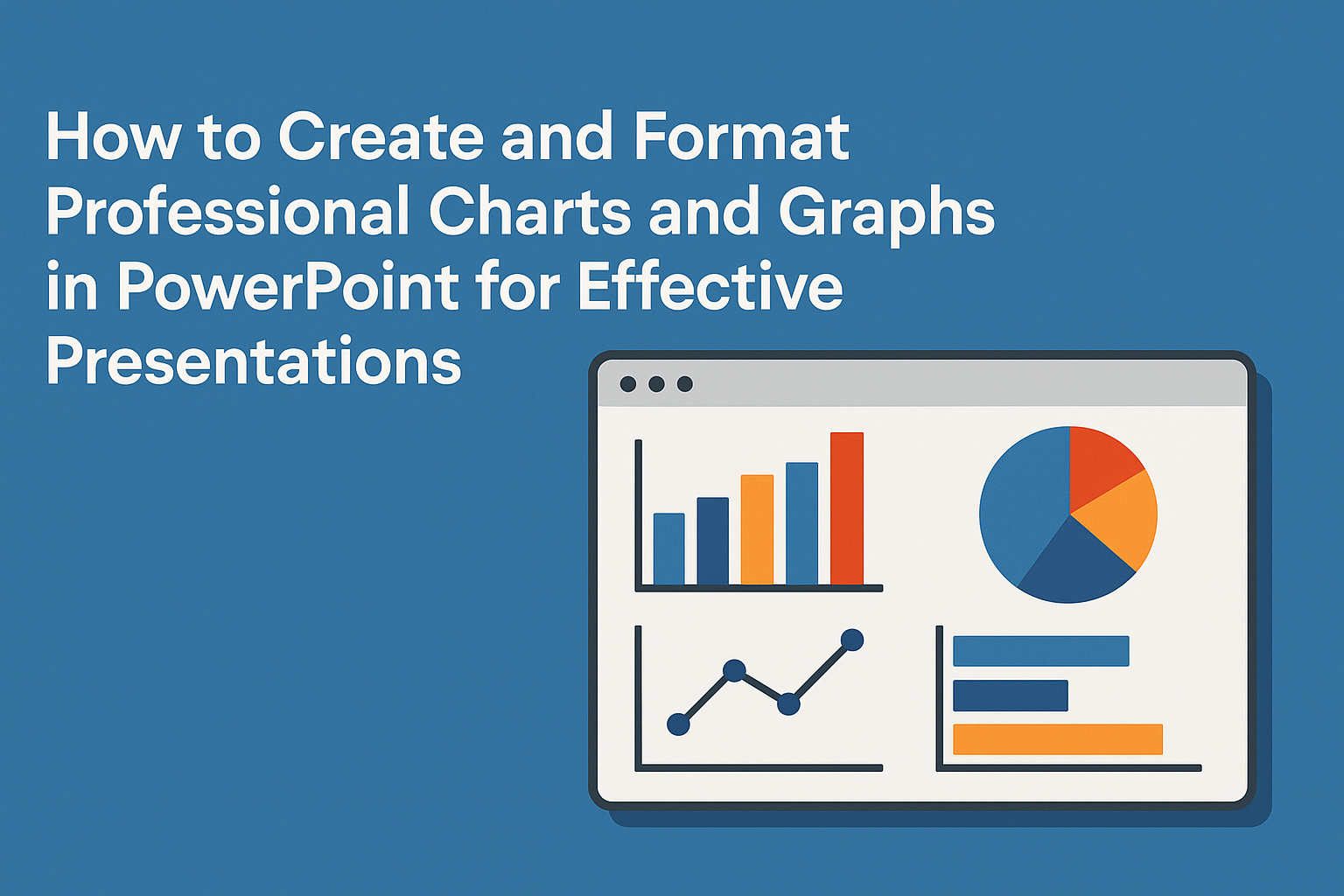
Creating professional charts and graphs in PowerPoint can make a big difference in how information is presented. Knowing how to effectively create and format these visuals helps in capturing the audience’s attention and enhances understanding. This skill is essential for anyone looking to elevate their presentations. PowerPoint offers various tools and features that simplify the …
Creating stunning image masks and shapes in PowerPoint allows anyone to elevate their presentations visually. By learning how to mask images, users can customize their visuals and focus the audience’s attention on key points. This skill can make any PowerPoint presentation stand out and engage viewers more effectively. Whether it’s fitting a photo into a …
InDesign offers powerful tools to enhance the layout of content. Understanding how to utilize the split column and vertical justification features can elevate any design project. These tools help achieve a balanced and visually appealing look, making text flow seamlessly across multiple columns. When working on complex layouts, he or she might struggle with uneven …
Creating and using anchored objects in InDesign can greatly enhance the layout of a document. Anchored objects allow images, graphics, or sidebars to move along with the text, ensuring a cohesive flow in any design project. This feature is useful not just for visual appeal but also for making content more engaging for readers. InDesign …
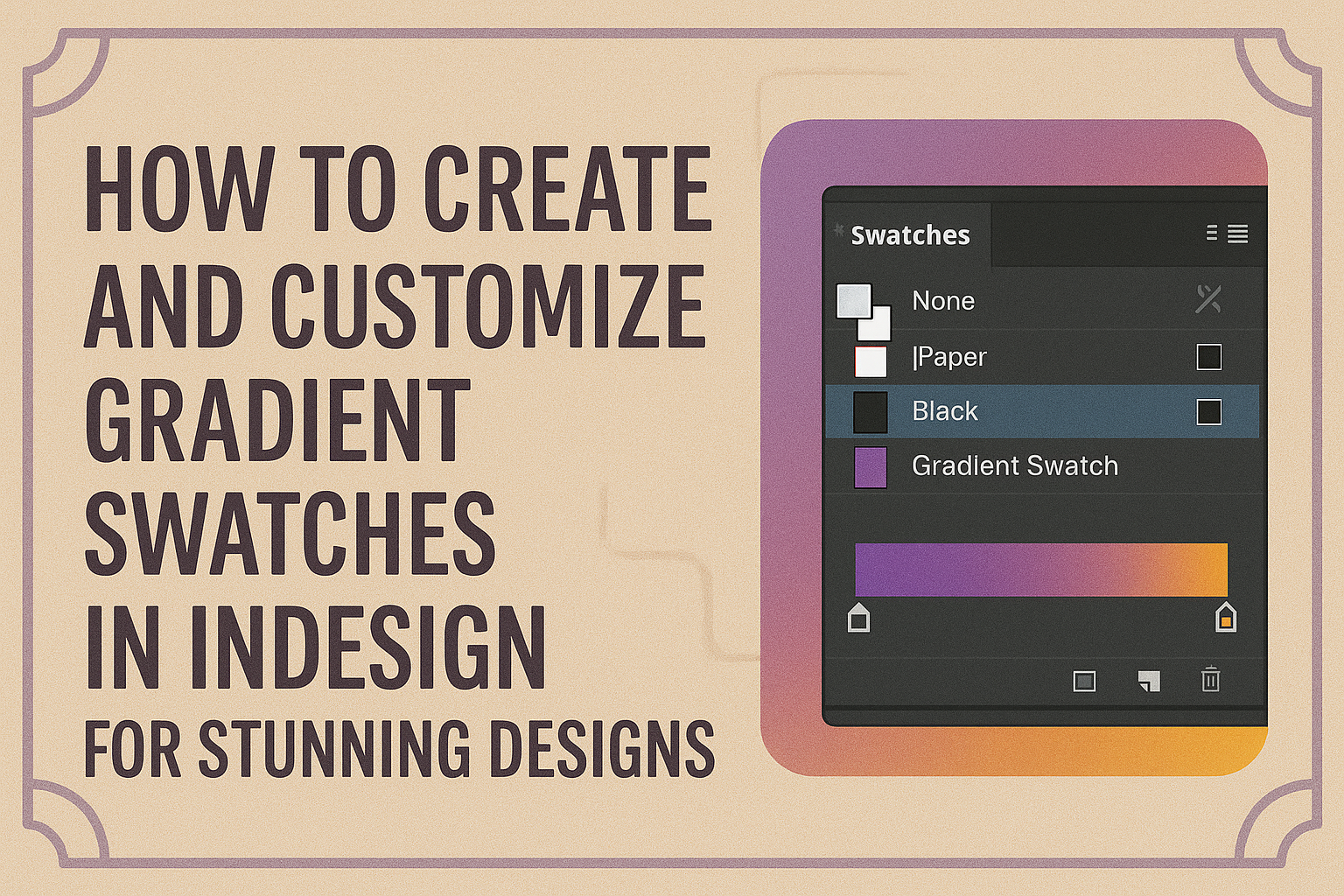
Creating stunning designs in InDesign can be greatly enhanced with the use of gradient swatches. Gradient swatches allow designers to add depth and visual interest to their projects by blending colors in a smooth transition. This blog post will guide readers through the steps to create and customize gradient swatches, making it easier to bring …
Adding footnotes and endnotes in Adobe InDesign can enhance the clarity of any document, making it easy for readers to reference important information. To create custom footnotes and endnotes, users can utilize the built-in features for seamless integration within their text. This allows for personalized touches, such as unique symbols or specific styles. InDesign offers …
Mastering stroke and fill in Adobe InDesign can elevate any design project. Customizing these elements allows designers to enhance shapes, paths, and text, making their work stand out. By understanding how to apply and adjust stroke and fill settings, they can easily create visually appealing layouts. With the right techniques, changing colors and adjusting stroke …